
 Electrics / Electronics
Benign Blog
Practical guides about batteries, storage, home power, science, and everyday troubleshooting.
Latest
Electrics / Electronics
 Electrics / Electronics
A Practical Home Battery Maintenance Checklist for Longer Backup Life
 Electrics / Electronics
Smart Ways to Cut Electricity Waste Without Sacrificing Comfort
 Computer
How to Decide Between an HDD Upgrade and an SSD Upgrade
 Electrics / Electronics
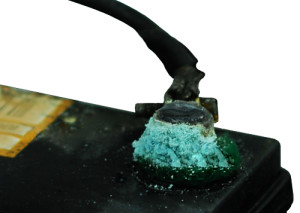
Corrosion of Battery Terminals: Explanation, Cleaning & Prevention
 Science
Well & Tube Well Water Cold in Summer and Warm in Winter – Reason
 Electrics / Electronics
Solutions for UPS and Power Inverter Problems
 Science
Mechanism And Principle Of Air Conditioning
 Electrics / Electronics
Batteries in Series and Parallel Connections (Battery Packs)
 Electrics / Electronics
Methods For Circuiting UPS & Inverter With House & Office Wiring
 Computer
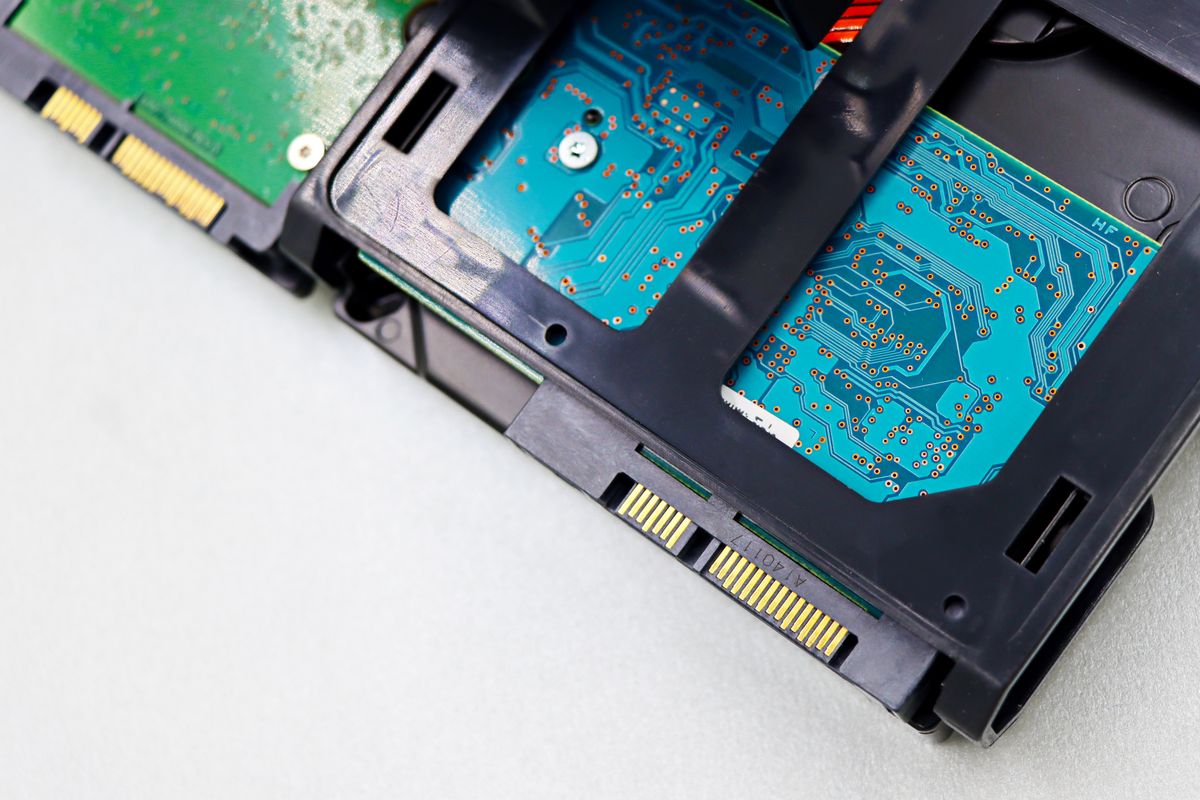
Advantages of Using Hard Disk Drives in Modern Computers
 Computer
USB Extension Cable Problem With Portable Hard Drives – Reason & Solution
Explore Categories
Jump straight into the main sections and follow the topics that matter most to you.
Archive
The technology archive combines broader product, software, and device articles that do not fit neatly into a single narrower category.
Electrics / Electronics
This category covers batteries, inverters, UPS systems, electrical wiring, energy usage, and common equipment faults in homes and small offices.
Computer
This section collects practical computer guides focused on hardware behavior, storage, peripherals, operating systems, and everyday troubleshooting.
Software
The technology archive combines broader product, software, and device articles that do not fit neatly into a single narrower category.
Science
The science section gathers accessible explainers about natural phenomena, applied science, and observations that often raise practical questions.
Mobile / Tablet
This archive focuses on smartphone and tablet troubleshooting, Android utility tips, battery care, touch input issues, and mobile accessories.
From the New Blog
Fresh editorial guides add practical, up-to-date reading alongside the core site topics.
Diagnose Home Power and Battery Problems Without Guesswork
Learn a practical, safe workflow to troubleshoot outages, weak batteries, and device issues using a multimeter, logs, and simple tests you can do at home.
A Practical Home Battery Maintenance Checklist for Longer Backup Life
A practical guide to inspecting, cleaning, charging, and documenting home backup batteries so they deliver steadier performance over time.
Smart Ways to Cut Electricity Waste Without Sacrificing Comfort
Learn practical ways to reduce electricity waste at home without making everyday living uncomfortable or overly restrictive.
A Practical Framework for Everyday Technology Decisions
Technology is most useful when it quietly supports the way people live, work, study, and communicate. A reliable battery keeps a backup system ready, a healthy storage drive protects important files, and a well-configured home network makes ordinary tasks feel effortless. Yet devices can become confusing when a warning appears, performance changes, or a familiar system behaves differently from one day to the next. Benign Blog is built around a simple idea: practical explanations help people make calmer, safer, and more informed decisions.
This guide brings several recurring themes together. It explains how to observe a problem before changing settings, how to separate symptoms from causes, how to document small tests, and when to stop troubleshooting and ask for professional help. The goal is not to turn every reader into an engineer. The goal is to make everyday technology less mysterious, reduce avoidable mistakes, and give you a repeatable method that works across batteries, computers, power equipment, storage, and connected devices.
Start with observation instead of guesswork
When a device stops working, the first reaction is often to replace a cable, install a random utility, or change several settings at once. That can make the original problem harder to understand. A better starting point is a short observation period. Write down what the device was doing, when the change appeared, which indicators are visible, and whether anything happened immediately beforehand. A power interruption, a new update, a move to another room, an unusual sound, or a recently connected accessory can all provide useful context.
Observation also means defining the problem precisely. “The computer is slow” could mean a delayed start, a full storage drive, a network issue, a browser extension, a failing component, or an application that is using more resources than expected. “The battery is not working” could mean that it is not charging, that the charger is unsuitable, that the terminals are dirty, that the load is too large, or that the battery has reached the end of its useful life. Precise language turns a vague complaint into a series of questions that can be tested safely.
A safety-first troubleshooting habit
Safety should come before speed. Disconnect equipment before opening a case, avoid touching exposed conductors, keep liquids away from powered devices, and never continue using a battery that is swollen, leaking, unusually hot, or physically damaged. Home power equipment, inverters, and fixed wiring can involve dangerous voltages even when a problem seems minor. If you are unsure about the risk, stop and consult a qualified technician rather than improvising a repair.
For low-risk checks, use a controlled sequence. Test one change at a time, record the result, and return to the previous state if the change does not help. This process may feel slower than trying several fixes at once, but it protects your data and produces better evidence. It also makes it easier to explain the issue to a repair professional because you can describe what was checked, what changed, and what remained the same.
Six steps for a clearer diagnosis
- Describe the symptom: Write what happens, what should happen, and whether the behavior is constant or occasional.
- Check the simple conditions: Confirm power, cables, switches, connections, available storage, and the correct input or output setting.
- Look for recent changes: Consider updates, new hardware, moved equipment, altered network settings, or a new workload.
- Separate the parts: Test a different cable, port, charger, outlet, user profile, or known-good accessory when it is safe to do so.
- Record the result: Keep a short note of the test, the date, and what happened. Patterns often become visible after several observations.
- Choose the next action: Continue with a low-risk check, back up important data, contact support, or stop using the equipment if safety is uncertain.
Common symptoms and useful first checks
The table below is a starting point rather than a substitute for professional diagnosis. Its purpose is to help you organize the first questions and avoid replacing expensive parts before basic conditions have been verified.
| Symptom | Possible causes | First safe check | When to escalate |
|---|---|---|---|
| A device will not power on | Outlet, cable, charger, switch, battery, or internal fault | Check the outlet and approved power connection without opening the device | There is heat, smoke, a smell, a damaged cable, or no response after basic checks |
| A computer feels unusually slow | Low storage, background processes, updates, malware, memory pressure, or aging hardware | Save work, restart, review storage and active applications, and back up important files | Data is disappearing, the drive reports errors, or the system repeatedly crashes |
| A battery loses charge quickly | Age, temperature, heavy load, poor charging conditions, or incorrect expectations | Check usage, temperature, charger compatibility, and visible physical condition | The battery is swollen, leaking, very hot, or cannot hold a safe charge |
| The home network drops out | Router placement, interference, provider outage, firmware, or a single-device issue | Compare another device, check indicator lights, and restart approved network equipment | The connection remains unstable across devices or equipment becomes hot or noisy |
Energy, storage, and the value of maintenance
Maintenance is often less dramatic than repair, but it has a larger effect over time. Keep vents clear, avoid extreme temperatures, inspect cables periodically, and give equipment enough space to release heat. For backup batteries, follow the manufacturer’s charging and storage guidance instead of relying on a generic rule. A simple maintenance log can include the date, visible condition, approximate runtime, unusual sounds, and any changes in performance. These notes help you notice gradual decline before it becomes an emergency.
Storage deserves the same attention. Important files should exist in more than one place, and a backup should be tested rather than assumed to work. Keep at least one copy separate from the main device, use clear folder names, and review old backups so they do not quietly fill the available space. When upgrading from a hard disk drive to a solid-state drive, consider capacity, compatibility, backup strategy, and the way the computer will be used. A faster component is useful only when the complete system and the user’s needs are considered together.
Connectivity is a system, not a single box
Home connectivity problems are frequently blamed on the internet provider even when the issue is local. A router may be placed behind furniture, a wireless signal may be crowded by nearby networks, or one device may have a damaged adapter while everything else works normally. Start by comparing several devices in the same location and at different times. If only one device is affected, examine that device first. If every device is affected, check the router, cables, power, and service status before changing advanced settings.
Good network habits also protect privacy and reliability. Use strong, unique passwords, update supported equipment, remove devices that are no longer used, and be cautious with unknown browser extensions or applications. Public networks are convenient, but they are not automatically private. A practical technology guide should explain both the button to press and the reason that action matters, so readers can make sensible choices when the exact model or situation changes.
Digital literacy includes attention and responsible choices
Technology is not only hardware and software. It also shapes attention, time, and decision-making. Notifications, autoplay, persuasive design, and endless feeds can make it difficult to notice how long a session has lasted or why a person opened a particular service in the first place. A useful digital routine includes clear goals, planned breaks, privacy awareness, and a willingness to close an app when it no longer serves the original purpose.
That same awareness matters when adults encounter online entertainment or gambling-related content. A reference such as casino uden rofus should be approached as a prompt to check local rules, age requirements, privacy terms, spending limits, and personal boundaries rather than as an invitation to act impulsively. Educational content can help readers recognize advertising techniques, distinguish entertainment from financial advice, and understand that games of chance should never be treated as a solution to money problems. If online activity stops feeling recreational, taking a break and seeking independent support is a responsible next step.
How to read and use a practical guide
The best guide is not necessarily the one with the most technical language. Look for a clear explanation of the problem, a stated scope, safe assumptions, and steps that can be verified. A responsible article should tell you what a check can reveal, what it cannot reveal, and when the situation requires a specialist. It should avoid promising certainty where the available evidence is limited. This is especially important for electricity, batteries, data recovery, and security, where an overconfident shortcut can create more damage than the original problem.
Readers can improve any guide by adapting it to their own context. Note the model, operating system, age of the equipment, environmental conditions, and the work the device must perform. Follow manufacturer instructions when they conflict with generic advice. Keep personal data safe while collecting screenshots or logs for support. A small amount of preparation makes troubleshooting more efficient and helps a professional understand the situation if you need to hand the problem over.
A simple technology routine for the household
- Weekly: Notice unusual heat, noise, charging behavior, storage warnings, or repeated connection failures.
- Monthly: Check that important files are backed up, review unused applications, and inspect visible cables and power adapters.
- Seasonally: Clean accessible vents, review battery storage conditions, and consider whether router placement still fits the household.
- Before an upgrade: Write down the problem you are solving, the capacity you need, your compatibility limits, and your backup plan.
- When something feels unsafe: Disconnect only when it is safe to do so, stop experimenting, and contact a qualified technician or support service.
Questions worth asking before making a change
Before buying a replacement, ask whether the current problem has been reproduced and measured. Before installing software, ask what permissions it requires, whether it is from a trusted source, and how it can be removed. Before changing a network or power setting, ask what the setting controls and how you will return to the previous configuration. These questions are simple, but they prevent many avoidable mistakes.
Before trusting an online claim, look for evidence, dates, model numbers, and independent context. A guide written for one generation of equipment may not apply to another. A recommendation that sounds universal may depend on climate, workload, battery chemistry, operating system, or local regulations. Good readers do not need to doubt everything; they need to know which details deserve verification.
Benign Blog aims to make that verification easier by connecting explanations with practical examples. Explore the categories, read the troubleshooting guides, and return when a new technology question appears. Whether you are maintaining a battery, choosing storage, investigating a network problem, or simply trying to reduce digital friction at home, a calm method is often the most useful tool you can have.